How to Bulk Import Excel/CSV Data into a SharePoint List with List Tools
In our daily work, we often need to migrate large amounts of data from Excel or CSV files into SharePoint lists. Manually copying and pasting item by item is not only inefficient but also prone to errors. To solve this pain point, we developed List Tools for SharePoint, a powerful SharePoint application that helps you complete data import tasks easily and quickly.
You can find and install our product on Microsoft AppSource.
Next, let’s walk through the simple steps to import data using List Tools.
Step 1: Launch the Import Tool
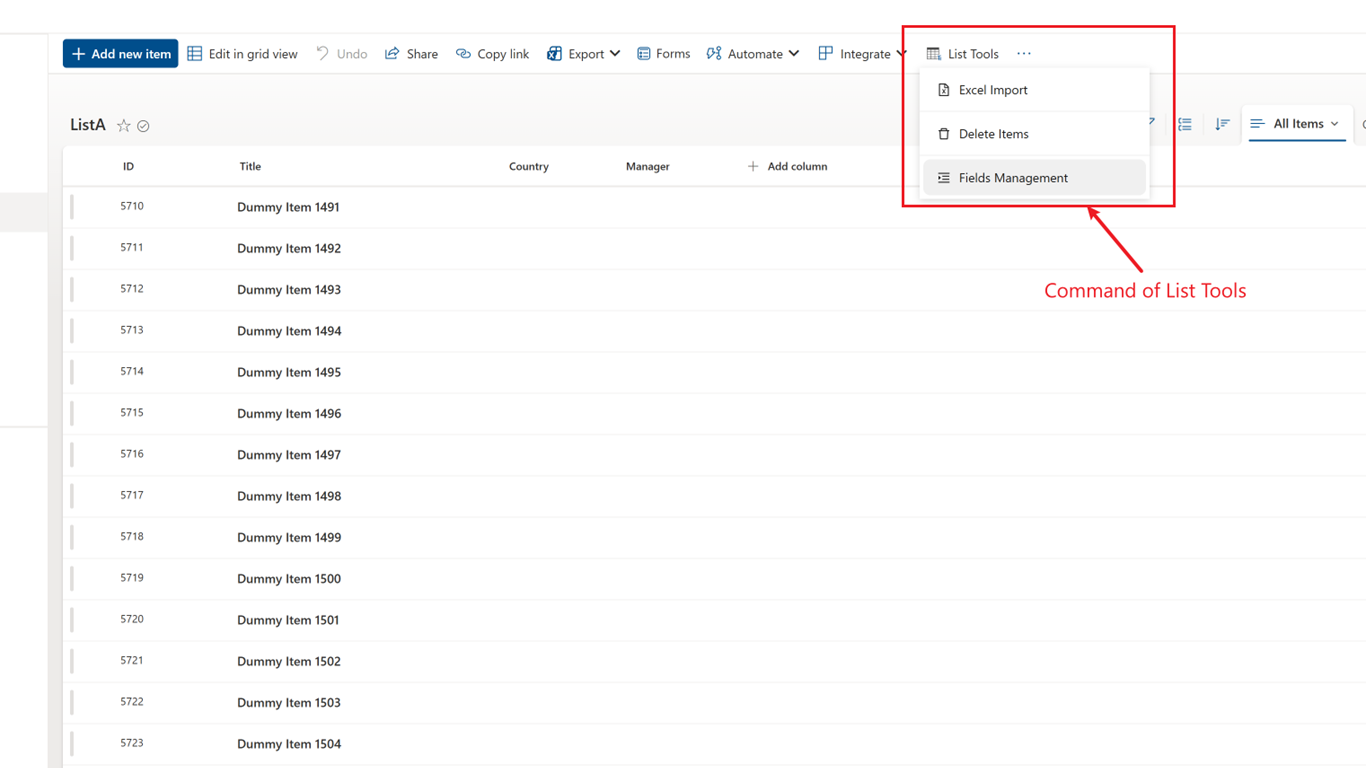
First, on your SharePoint list page, you will see a button named “List Tools”. Click it you will see a dropdown menu on which you can click the first option to launch our data import wizard.
Step 2: Select the Data Source
In the pop-up window, click the “Select a file” button to choose the Excel or CSV file you want to import. After selecting the file, if your Excel file contains multiple sheets, the system will automatically ask you to select which one to import.

Step 3: Field Mapping
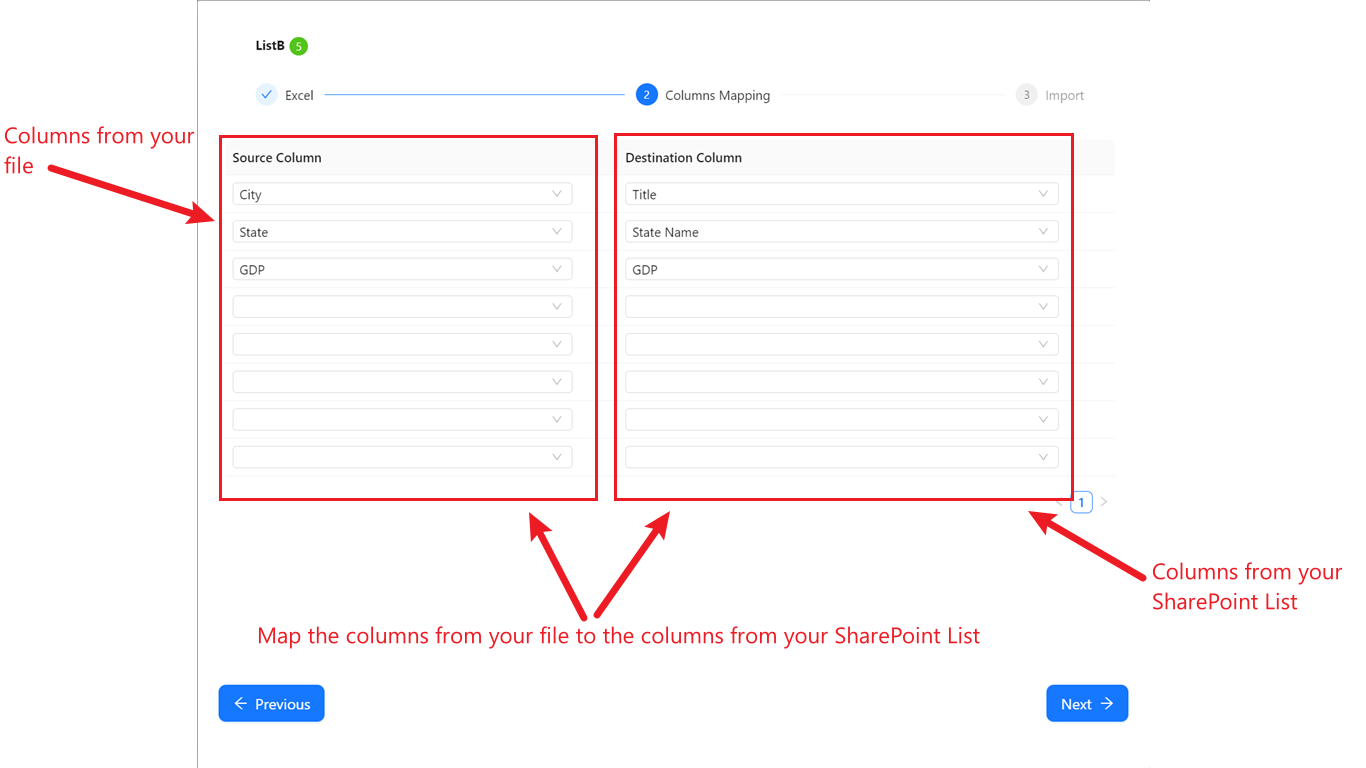
This is a crucial step. You need to match the columns from your Excel/CSV file (Source Field) with the columns in your SharePoint list (Target Field). Our tool provides an intuitive interface where you just need to select the corresponding source data column for each SharePoint column you want to import. Correct field mapping ensures that the data is accurately written to the appropriate location in the SharePoint list.
Step 4: Data Preview and Confirmation
Before the final import, the system provides a data preview interface. Here, you can check whether the data to be imported is correct, including content and format. This can effectively prevent import errors caused by data source issues.

Step 5: Complete the Import
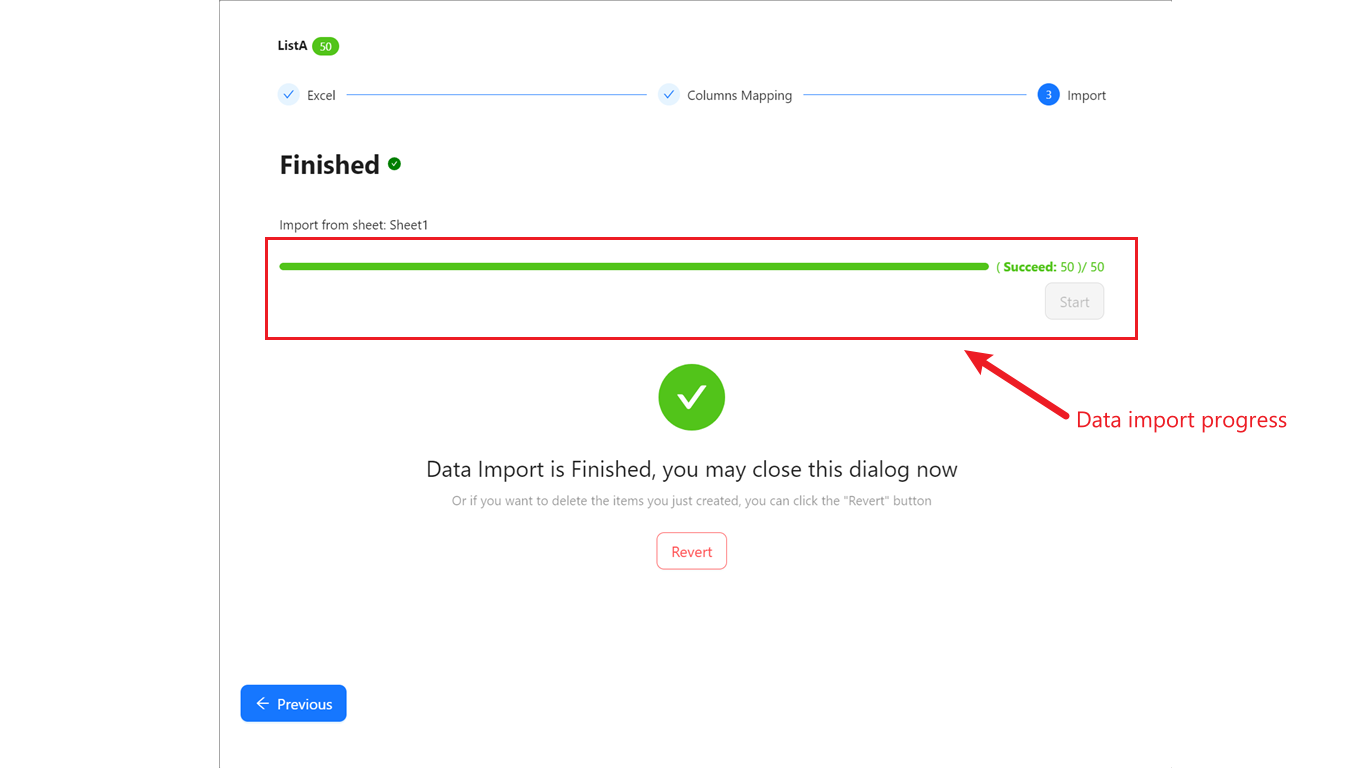
After confirming everything is correct, click the import button, and List Tools will begin the data import task. Once the task is complete, the system will provide a clear success message, informing you how many data entries have been successfully imported.
Conclusion
By following these five simple steps, you can use List Tools to quickly and accurately import large amounts of data from Excel/CSV files into SharePoint lists, significantly improving work efficiency and reducing the risk of errors. We hope this tutorial is helpful to you!
